
API Keys
Issue and revoke the keys that authenticate MCP clients.
API keys are how an MCP client proves it's allowed to read your knowledge base. Each key belongs to your organization and grants read-only access. You manage them from Settings → Integrations, in the MCP API keys panel.
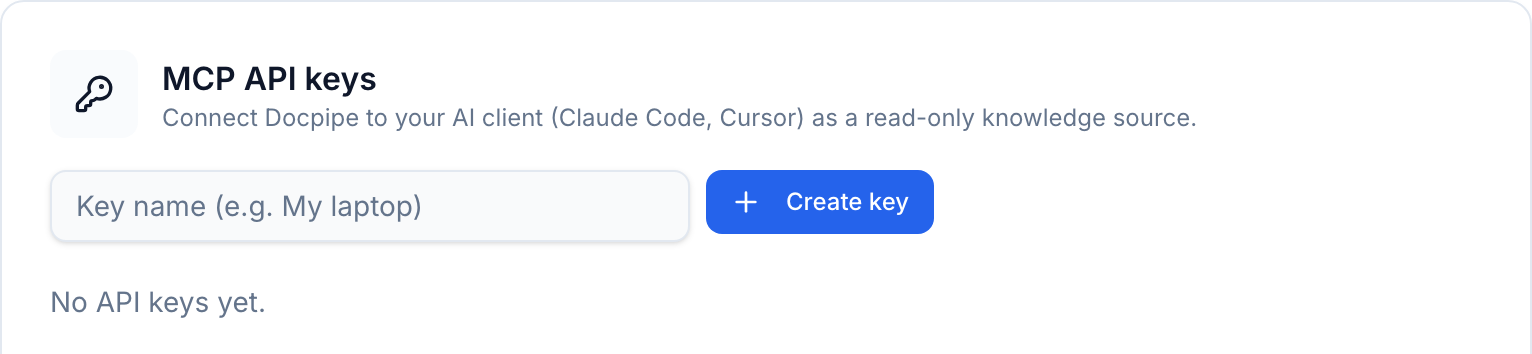
Create a key
- Go to Settings → Integrations and find MCP API keys.
- Give the key a name — something that tells you where it's used, like My laptop or Cursor.
- Select Create key.
The full key is shown once, in a Copy your API key dialog: "This is the only time the full key will be shown." Copy it and store it somewhere safe — Docpipe only keeps a hashed version, so it can never show you the key again. If you lose it, revoke it and create a new one.
Keys start with dcp_live_. In the list, each key shows only a short prefix (dcp_live_XXXX…), never the full value.
Manage keys
Each key in the list shows its name, when it was created, and when it was last used — so you can spot keys that are no longer needed. Select Revoke to disable a key immediately; any client using it stops working at once.
Who can manage keys
Managing API keys requires being an organization owner or having the manage-organization privilege — the panel is hidden from everyone else. Creating a key also requires a plan that includes the MCP server; on the Free plan you'll be prompted to upgrade.
Treat a key like a password. Anyone with it can read every active document in your organization. Revoke a key the moment it might be exposed.