
The Editor
Blocks, the slash menu, formatting, tables, callouts, and code.
Docpipe's editor is block-based: every paragraph, heading, list, table, and image is a block you can add, rearrange, or turn into something else. If you've used Notion, it will feel familiar — and most of what you need is a keystroke away.
The slash menu
Type / anywhere on an empty line to open the slash menu, then keep typing to filter. It's the fastest way to insert any block:
- AI — Ask AI opens the assistant to draft or rewrite in place.
- Basic blocks — Text, Heading 1–3, Bulleted list, Numbered list, Blockquote, Callout, Code block, Table, Divider, and Table of contents.
- Diagrams — Mermaid diagram (see Diagrams).
- Media — Image, Video, Audio, and File (see Images & Files).
Formatting text
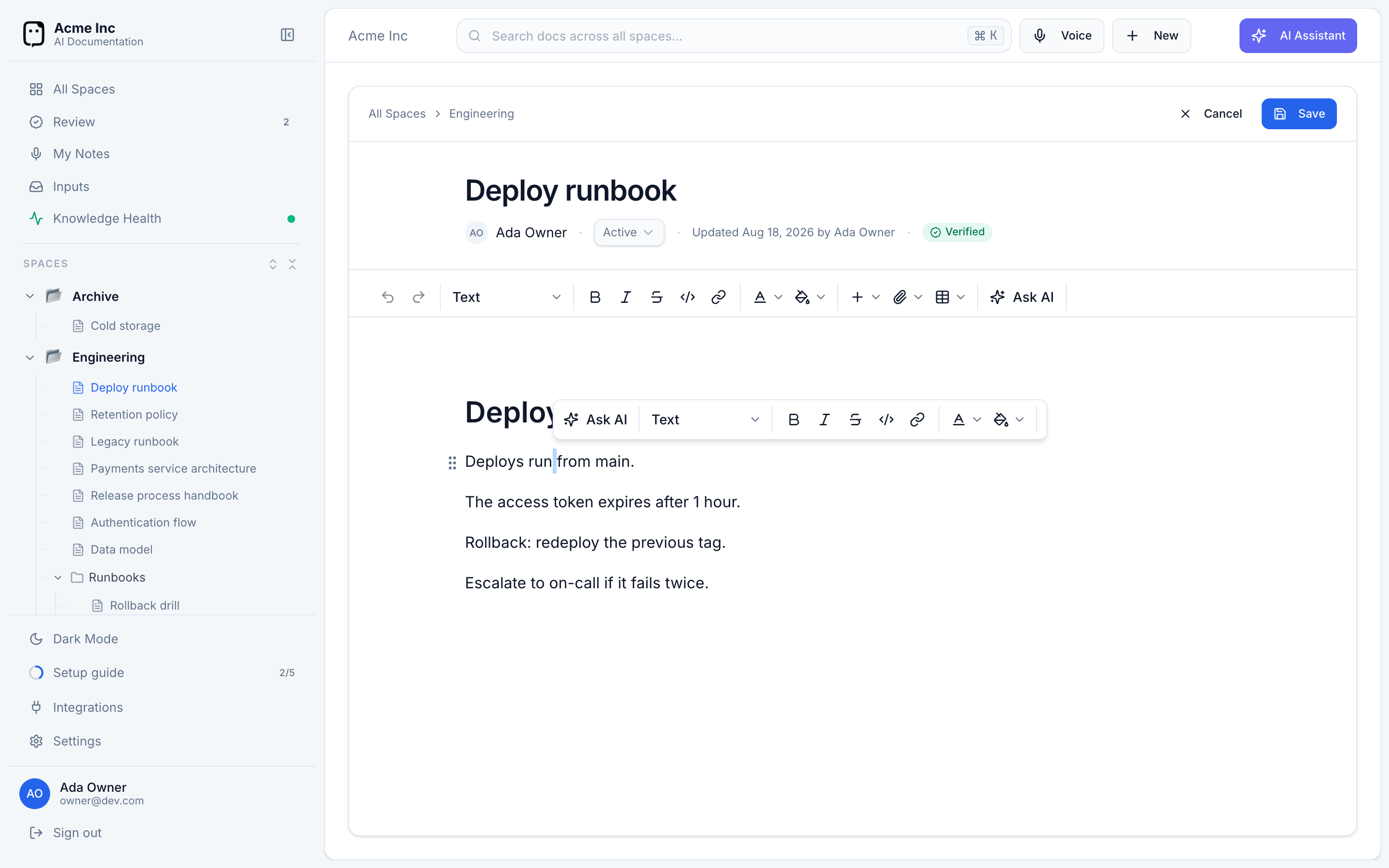
Select any text to bring up the floating toolbar, or use the toolbar at the top. You can apply Bold (⌘B), Italic (⌘I), Strikethrough, inline code (⌘E), and links, plus text and background color. Selected text also gets quick actions to raise a Jira or Linear issue from what you've highlighted.
To change a block's type — say, turn a paragraph into a heading or a quote — use Turn into in the toolbar. It covers Text, Heading 1–3, Bulleted list, Numbered list, Code block, Quote, and Callout.
Markdown shortcuts
You can format as you type, without reaching for the toolbar. At the start of a line:
#,##,###→ Heading 1, 2, 3-or*then space → bulleted list;1.→ numbered list>then space → blockquote```→ code block---→ divider
Inline, **bold**, *italic*, ~~strikethrough~~, and `code` all work, and pasting or typing a URL turns it into a link. Common sequences also auto-replace — -> becomes an arrow, (c) becomes ©, and straight quotes become curly ones.
Callouts
A callout draws the eye to something important. Insert one from the slash menu or Turn into, then click its icon to switch between six types — Info, Note, Success, Warning, Error, and Tip — each with its own color and icon.
Callouts are great for prerequisites, warnings, and "good to know" asides — exactly the kind of context a reader would otherwise miss.
Code blocks
Insert a code block for anything that should render as code. Pick a language from the searchable language menu for syntax highlighting — from Bash and Python to TypeScript, SQL, and YAML — and use Copy to grab the contents or Format code to tidy supported languages. Press Enter on an empty last line to exit the block.
Tables
Insert a table from the slash menu, the Insert menu, or the table toolbar button. Hover a row or column to reach its controls: insert a row or column before or after, delete one, merge cells, or toggle a header row or column so the first row (or column) stands out.
Other conveniences
- Emoji — type
:followed by a name (:rocket:) to pick an emoji inline. - Table of contents — insert a Table of contents block and it stays in sync with your headings as the document grows.
- Drag to reorder — grab a block by its handle to move it anywhere in the document.