
Roles & Privileges
How roles control what members can do across your organization.
Roles decide what someone can do at the organization level — managing members, integrations, settings, and more. What someone can do inside a specific space (view, edit, or manage its documents) is controlled separately; see Space access.
The built-in roles
Every organization starts with two roles you can use right away:
- Member — the default for most people. A Member can create new spaces (and becomes the admin of any space they create). Their access to existing content is granted per space.
- Super Admin — full control of the organization: members, roles, integrations, spaces, settings, and knowledge health.
Separately, the person who created the organization is its Owner. The owner has unrestricted access, including owner-only actions like transferring ownership, and an organization always has at least one owner.
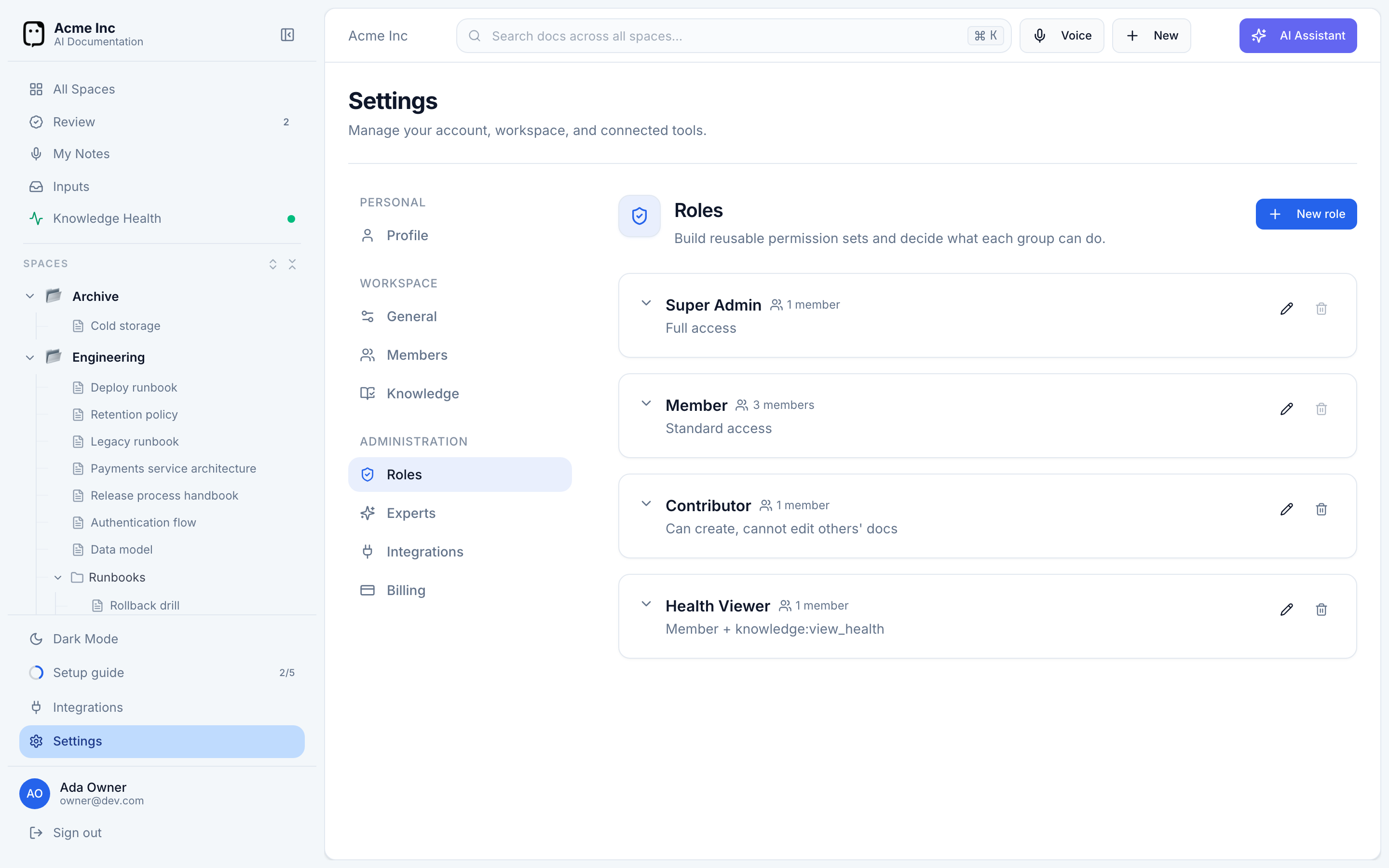
Custom roles
If the built-in roles aren't enough, you can create your own with a specific set of permissions.
- Go to Settings → Roles and select New role.
- Give it a Name and an optional Description.
- Choose its privileges from the grouped checklist.
Custom roles are a paid feature; the two built-in roles are always available. System role names can't be changed, system roles can't be deleted, and a role can't be deleted while it's still assigned to members.
What privileges control
Privileges are grouped by area, including:
- Team — invite and remove members, manage member roles, revoke invitations.
- Content — create spaces and sections, manage space experts, and manage space access.
- AI inputs — approve or reject captured proposals.
- Organization — manage settings, manage roles, and view knowledge health.
Editing documents isn't an organization-level privilege — it's granted per space. Give someone edit or admin access to a space to let them change its documents. See Space access.