
Space Access
Control who can view, edit, and manage each space.
Roles set what someone can do across the organization; space access controls what they can do inside each space. It's how you keep sensitive knowledge scoped to the right people while sharing the rest.
The three access levels
Within a space, a member has one of three levels:
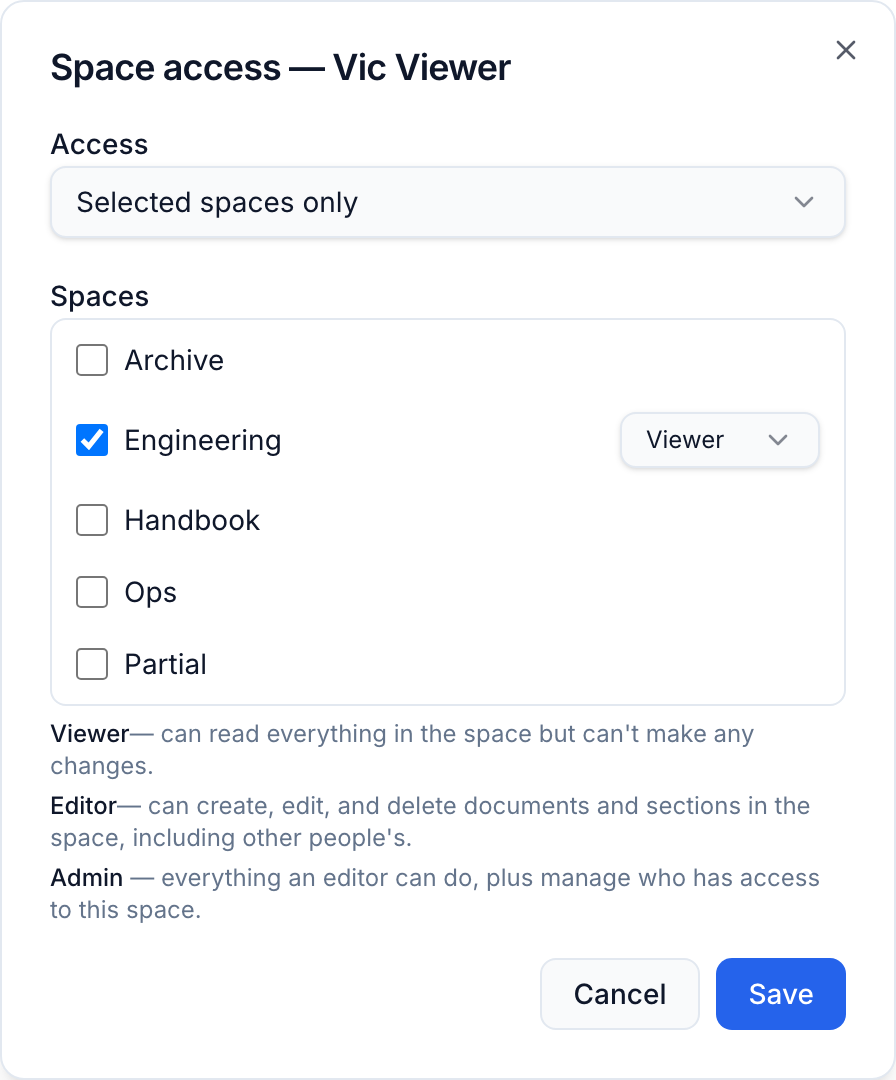
- Viewer — can read everything in the space, but can't make changes.
- Editor — can create, edit, and delete documents and sections in the space, including other people's.
- Admin — everything an editor can do, plus manage who has access to the space.
A Super Admin (and the owner) can access every space, so there's nothing to scope for them.
Set who can access a space
Space access is managed per member, from Settings → Members:
- Find the member and select Manage space access (the folder icon on their row).
- In the Space access dialog, choose their overall scope:
- All spaces — they can reach every space.
- Selected spaces only — they see only the spaces you grant, each at the level you pick.
- For restricted members, choose a level — Viewer, Editor, or Admin — for each space, then save.
Each member's row shows a summary of what they can reach: All spaces, a list of specific spaces, or No spaces.
Who can change access
- Owners and Super Admins can change any member's access, including switching them between All spaces and Selected spaces only.
- A space Admin — someone who created a space or has Admin access to it — can grant access to that space, but can't change a member's overall scope.
- You can't change your own access, and owners always have access to every space.
Editing a document requires Editor or Admin access to its space — a Viewer can read but not change it. This one rule governs every way of editing a document, from the editor to captured changes and integration updates.