
Verification & Staleness
Mark documents as verified, and catch the ones that may have gone stale.
Documentation drifts out of date. Verification is how Docpipe tracks which documents someone has confirmed are accurate — and flags the ones that may no longer be.
Verify a document
Each document header shows a verification status. To confirm a document is accurate:
- Open the verification control on the document.
- Select Verify — or Still accurate, if it was verified before and needs re-confirming.
- Confirm. You're vouching that you've read the document and it's accurate today.
You can also turn on Re-check this periodically so Docpipe reminds you to re-verify on a schedule. A verified document shows a green Verified badge, so readers know it's been checked.
When a document needs review
Docpipe moves a verified document back to needs review when something suggests it may have gone stale. The badge tells you why:
- Edited since it was verified — the document changed after it was last verified.
- Flagged as outdated — someone marked it as no longer accurate.
- Verification expired — its periodic re-check came due.
- Verification requested — a teammate asked for it to be re-confirmed.
- Related changes elsewhere may also have made it stale.
Applying a captured change to a verified document also sends it back to needs-review, so its owner can re-confirm the new version. You can do both in one step with Apply & verify when you review a change.
Find what needs your attention
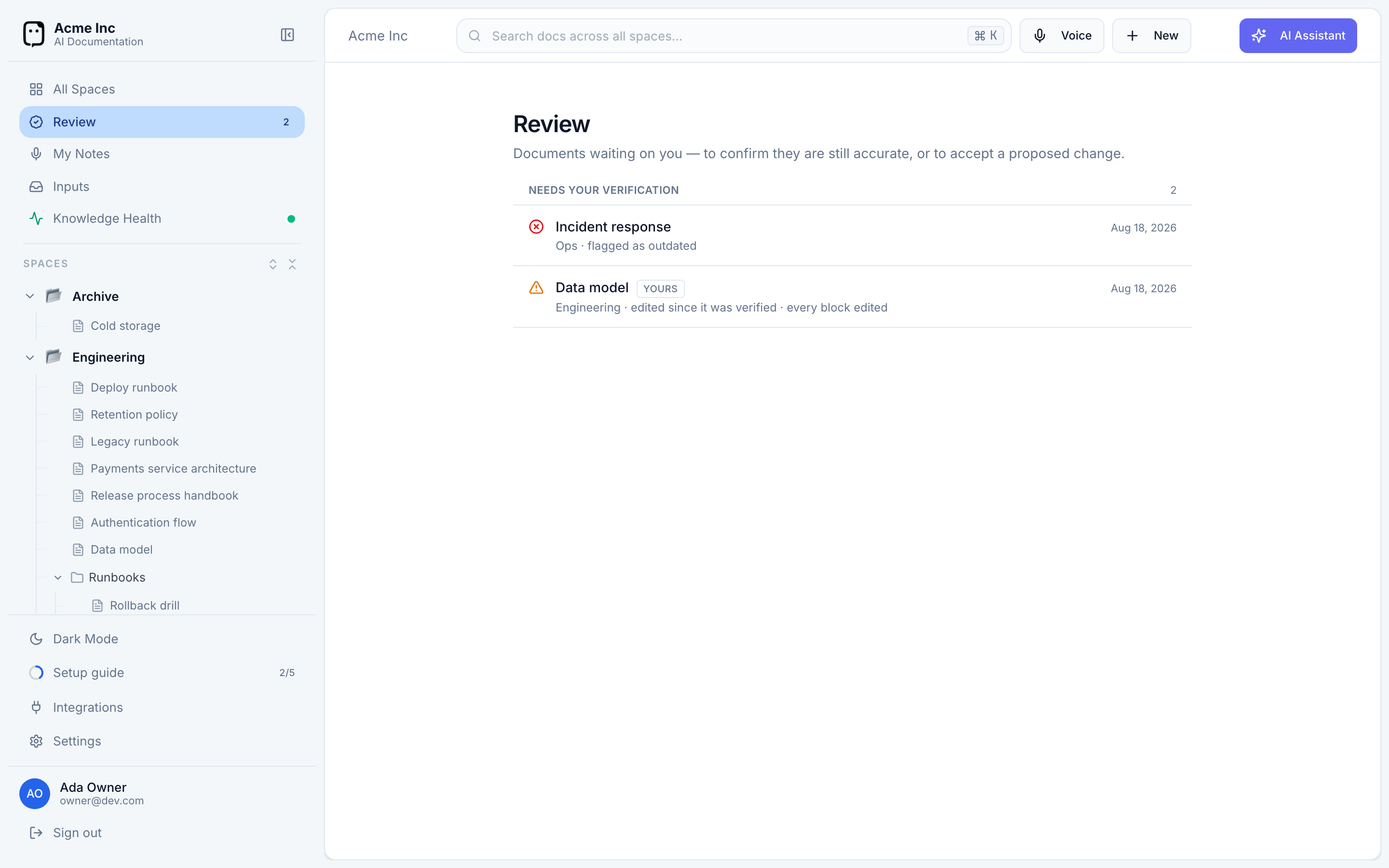
The Review queue collects the documents waiting on you, in two groups:
- Needs your verification — documents to confirm are still accurate.
- Proposed updates — changes waiting for your approval.
Verification comes first, because a document that's wrong is more urgent than one that could be better. Selecting an item opens the document so you can act on it there.
From the same verification control, you can also ask a teammate to re-confirm a document with Request verification, or flag an issue you've spotted with Report a problem.