
Confluence
Import your existing Confluence spaces and pages into Docpipe.
If your team already documents in Confluence, you can bring that content into Docpipe with a one-time import. Imported Confluence pages become Docpipe documents you can search, ask about, and keep up to date.
Importing requires admin access (organization owner, or a role with Manage org settings).
Import from Confluence
- Go to Settings → Integrations → Confluence.
- Enter your Confluence connection details:
- Confluence base URL — for example,
https://yourorg.atlassian.net. - Atlassian account email — the account whose access is used for the import.
- API token — generate one at id.atlassian.com.
- Confluence base URL — for example,
- Select Connect and choose spaces.
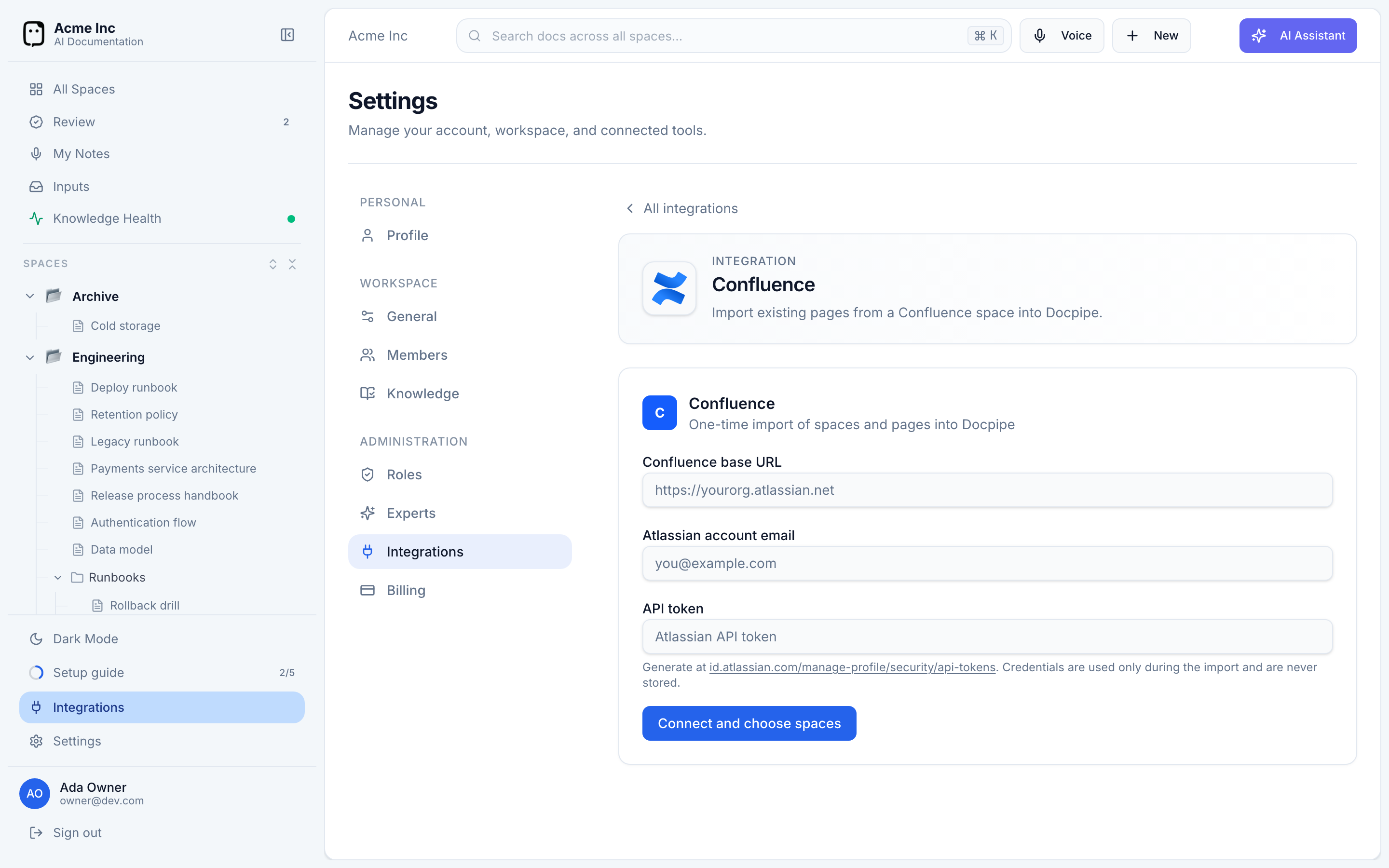
Your credentials are used only during the import and are never stored.
Choose what to import
Docpipe lists the spaces it can see. Select the ones you want — all are selected by default — and leave Skip pages with no content on to avoid importing blank or placeholder pages. Then select Import N spaces.
The import runs in the background and shows its progress, so you can safely leave the page. Large spaces can take several minutes. When it finishes, the imported spaces and pages appear in your sidebar as Docpipe documents.
It's a one-time import
Confluence import is a one-time copy, not an ongoing sync. Changes you make in Confluence afterward won't flow into Docpipe, and changes in Docpipe won't flow back. To bring in new content later, run the import again.