
Linear
Turn completed Linear issues into proposed documentation updates.
Connecting Linear lets Docpipe create and link Linear issues from your docs, and turn completed issues into proposed documentation updates — so your docs keep pace with the work your team finishes.
Setting up Linear requires admin access (organization owner, or a role with Manage org settings).
Connect Linear
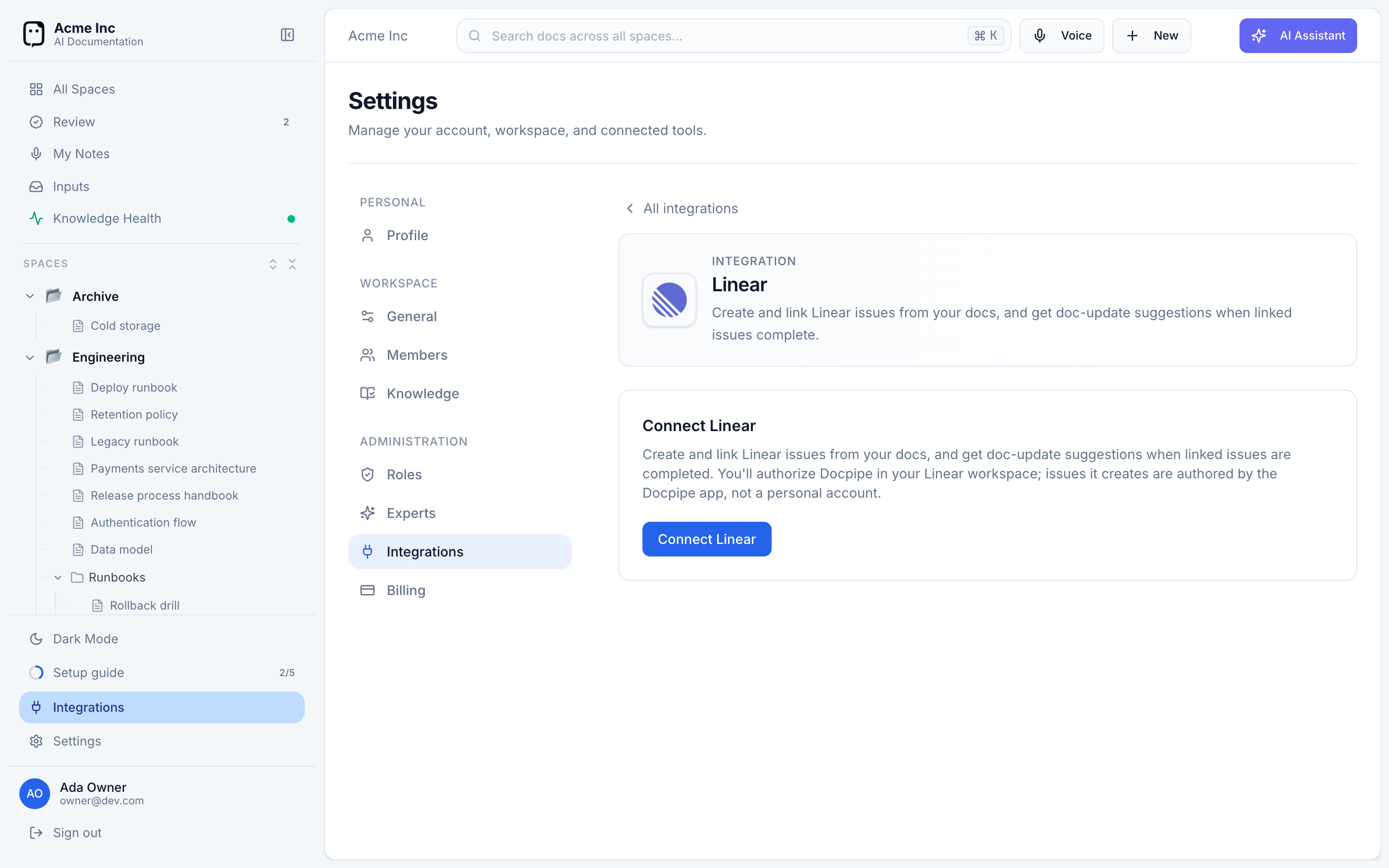
- Go to Settings → Integrations → Linear and select Connect Linear.
- Authorize Docpipe in your Linear workspace. Issues Docpipe creates are authored by the Docpipe app, not a personal account.
Choose which teams Docpipe works with
After connecting, select Choose teams and pick the Linear teams Docpipe should work with. Until you choose teams, the connection does nothing — issues can't be linked or created, and no completed issues are reviewed for doc updates.
When an issue in one of your chosen teams is completed, Docpipe reviews the documents linked to it and suggests updates — reviewed like any other change before they're saved.
To change scope later, use Edit teams. Removing a team stops future reviews for its issues; existing links stay.
Docpipe picks up completed issues within a minute or two when its webhook is active; otherwise a scheduled sweep catches them, which can take longer. (If you connected before instant updates existed, reconnect to activate them.)
Disconnecting Linear is destructive. It deletes all links between your documents and Linear issues and dismisses open doc-update suggestions — and reconnecting does not restore them. To change your setup, edit your teams or reconnect in place rather than disconnecting. Issues you already created in Linear aren't affected.
Disconnect
If you do need to remove the integration, select Disconnect Linear and confirm. This revokes Docpipe's access and deletes the document↔issue links (see the warning above).