
Slack
Connect your Slack workspace to capture decisions and answer questions with /docpipe.
Slack is Docpipe's most important integration. Connecting it lets your team capture decisions and get cited answers with /docpipe, right where work happens — and it's the first step in your Setup guide.
Setting up Slack requires admin access (organization owner, or a role with Manage org settings).
Connect your workspace
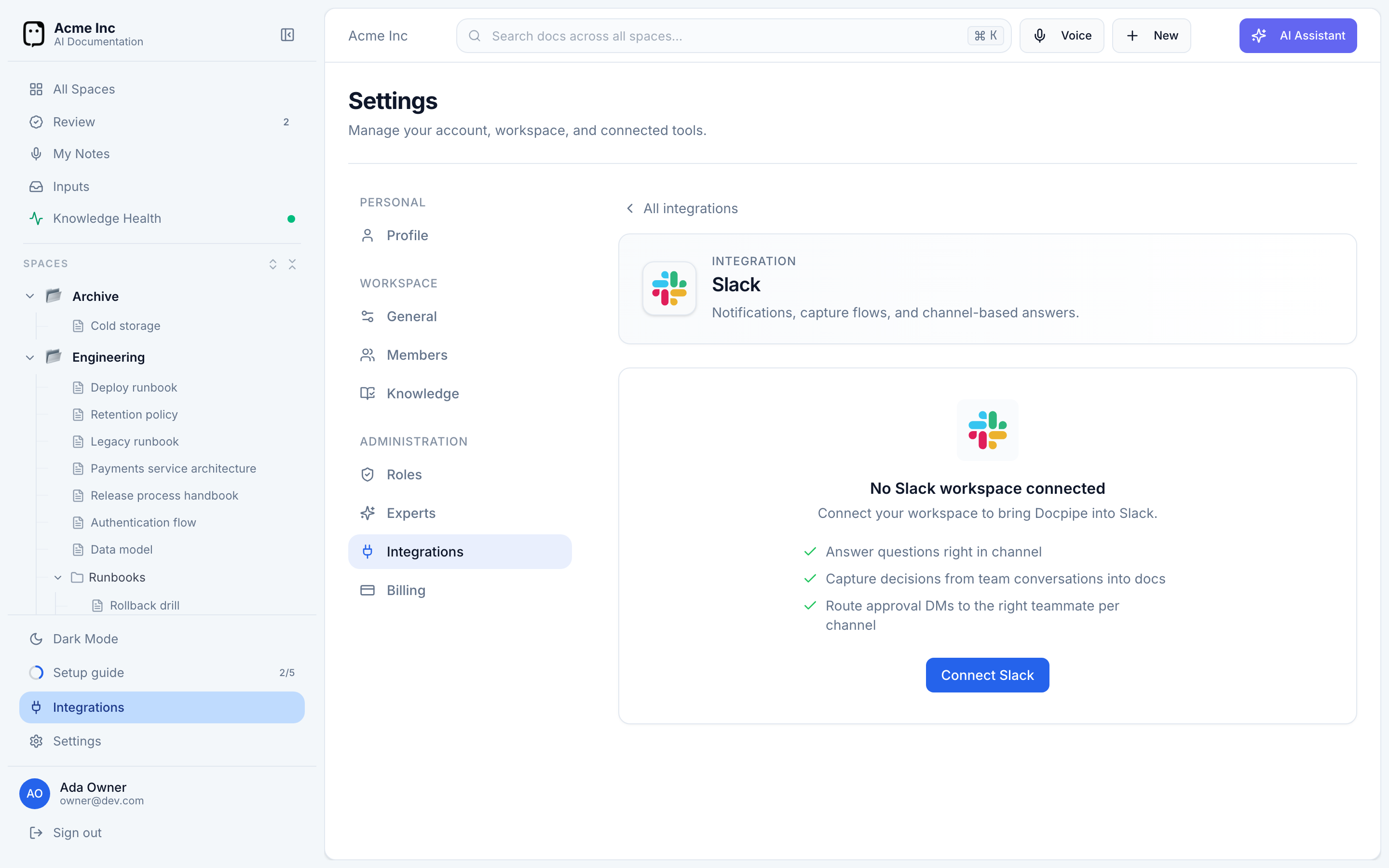
- Go to Settings → Integrations → Slack.
- On the No Slack workspace connected screen, select Connect Slack.
- Slack asks you to approve adding the Docpipe app to your workspace. Approve it.
Docpipe installs a bot for your organization and confirms with a Connected badge showing your workspace name.
What connecting Slack enables
Once connected, your team can:
- Answer questions in channel — ask
/docpipea question and get a cited answer. See Ask in Slack. - Capture decisions into docs — send knowledge with
/docpipe, or set up automatic capture. See Capture from Slack. - Route approvals — proposed changes reach the right person as a Slack DM.
Watched channels
From the Slack settings page you can opt specific channels into automatic capture, choosing which space each maps to and who approves its captures. See Watched channels for the full setup.
Keeping the connection healthy
If Docpipe's Slack access is ever interrupted, the settings page tells you how to fix it (and emails your owners the first time it happens):
- Connection lost — if the app was removed from your workspace, you'll see Slack connection lost. Select Reconnect Slack to restore it. Until then, DMs, captures, and channel watching are paused.
- Reinstall required — if Docpipe has gained new permissions since you installed it, you'll see Slack reinstall required, listing what's missing. Select Reinstall Slack to re-authorize; slash commands may fail until you do.
Disconnect
To remove the integration, select Disconnect on the Slack settings page. This removes the Docpipe token and stops all Slack DMs, capture flows, and watched channels — it can't be undone, so you'll be asked to confirm by typing your workspace name. You can also uninstall the Docpipe app from Slack at the same time.